How to Transfer RFEF Tickets
First, connect and refresh your RFEF account.
1. Send the tickets
- Open the match and select tickets from the same RFEF account and event.
- Click Actions → Transfer.
- Check the selected seats and enter the recipient's Email.
- Click Transfer Ticket or Transfer Tickets (N) once. Enter your Tikey Master Password if asked.
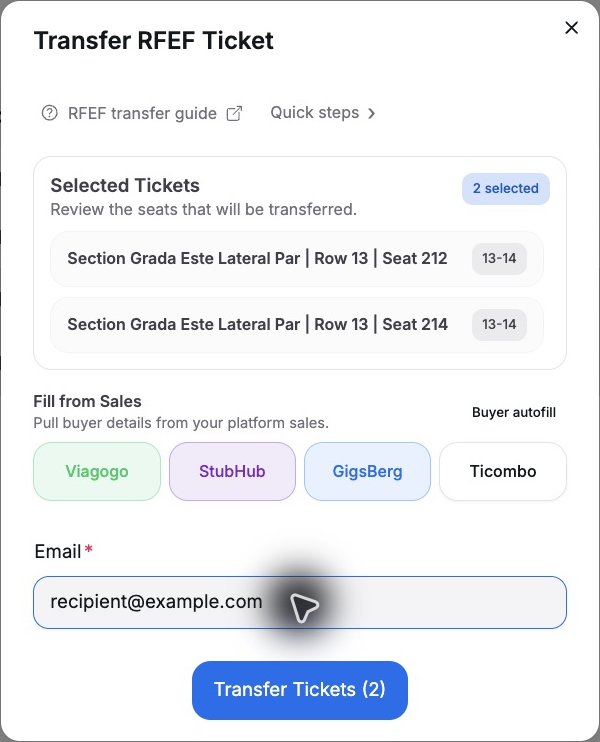
Only the recipient email is required. RFEF transfers do not use Tikey's first-name, last-name or OTP fields.
RFEF decides whether the transfer is allowed. An available Transfer button does not guarantee eligibility. Already transferred tickets cannot be submitted again; RFEF can also reject activated tickets or apply other event restrictions. Tikey displays the error returned by RFEF.
2. Check the result
| Result | What to do |
|---|---|
| Transfer submitted | Check its status in the RFEF app. The recipient may need to accept it there. |
| RFEF rejects the transfer | Read the error in Tikey. For example, an already activated ticket can be refused. |
| Pending or unclear result | Check RFEF before retrying. A request may have reached RFEF even if Tikey could not confirm it. |
| Need the latest ticket status | Use My Tickets → Refresh → RFEF → your account. Refresh includes sent history. |
| Session no longer works | Reconnect the RFEF account, then refresh. |
The screenshots use past tickets to illustrate the controls; they do not show a successful transfer.
For a link that displays the QR while keeping the tickets in your account, use RFEF QR Sharing.