Transfer Proof
Transfer Proof reads the latest transfer information directly from your connected AXS or Ticketmaster account and lets you download it as an image.
The transfer status and details are real data returned by the connected provider account. Tikey Manager does not invent, simulate, or create a fake transfer. It only displays the provider response and formats it for PNG or JPEG download.
Eligible AXS or Ticketmaster ticket
                  |
                  v
       Select it in My Tickets
                  |
                  v
       Actions > Transfer proof
                  |
                  v
     Check the live interactive preview
                  |
                  v
   Create PNG / JPEG or Custom crop
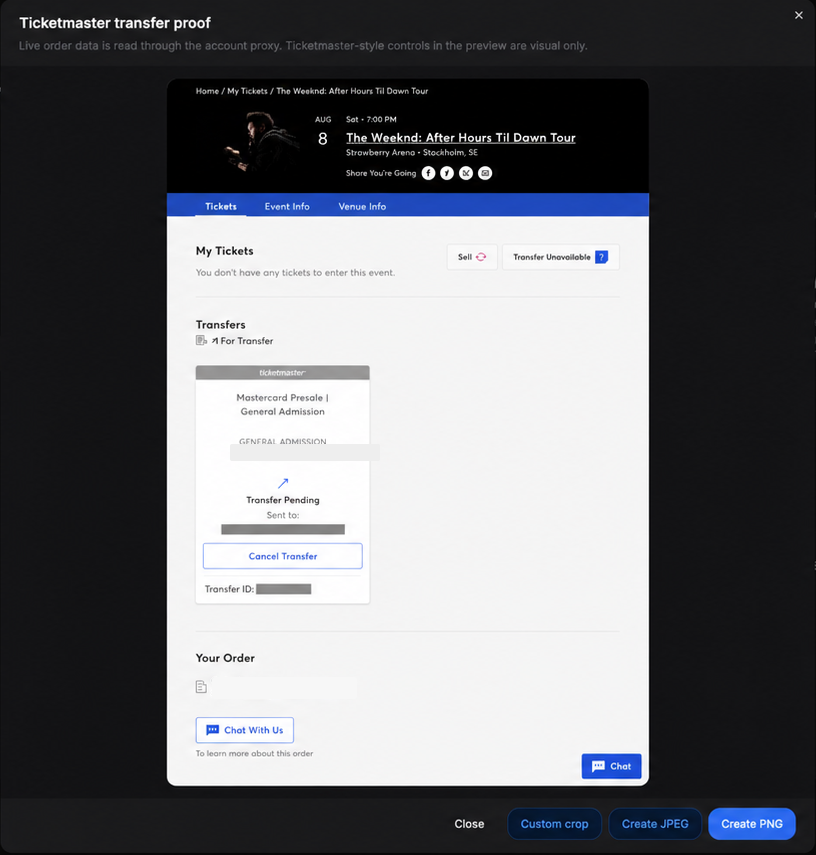
- For Ticketmaster, the ticket must appear as Transfer Pending or Transferred.
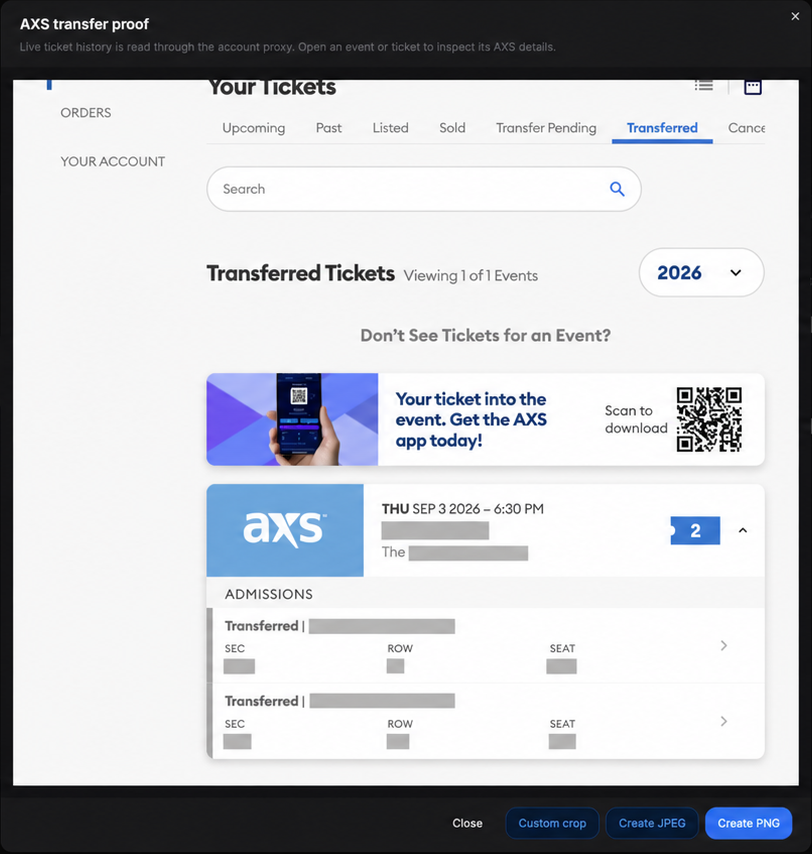
- For AXS, the ticket must exist in the live pending, transferred, or sold history.
- Select one ticket for the simplest result. If you select several, they must share the same provider, account, and order.
Open Transfer Proof
- Open Inventory → My Tickets, then open the event.
- Select one eligible AXS or Ticketmaster ticket.
- Click Actions → Transfer proof under the AXS or Ticketmaster section.
- Wait while Tikey Manager reads the latest transfer information.
What you will see
This is not a fixed screenshot. When you open Transfer Proof, Tikey Manager retrieves the current transfer information from the connected provider account and displays it in a live, interactive preview.
Where available, click an event, ticket row, or details arrow to inspect more information about the transfer. In the AXS preview, you can also switch between available years. Ticketmaster-style action buttons shown inside the preview are visual only and cannot change or cancel the real transfer.
Ticketmaster
The preview contains real outgoing transfer and order information returned by the connected Ticketmaster account. Tikey Manager does not create this information.
AXS
The preview contains real pending, transferred, or sold ticket history returned by the connected AXS account. Tikey Manager does not create this information.
Check and download
Confirm that the preview shows the expected transfer before downloading it.
- AXS: you can open events and tickets or switch to another available year.
- Ticketmaster: the preview can show the outgoing transfers returned for that order.
- Create PNG / Create JPEG: downloads the full proof.
- Custom crop: choose the useful area, then select Save PNG or Save JPEG. Keep the recipient and transfer ID inside the crop when they are needed as evidence.
If Transfer Proof is missing
- Select only one ticket and check Actions again.
- Do not mix providers, accounts, or orders in one selection.
- For Ticketmaster, confirm the ticket is Transfer Pending or Transferred. This is not a resale-sale proof.
- Refresh My Tickets, relogin the connected account if needed, then select Try again.
- If another proof is loading or requests were made too quickly, wait briefly before retrying.
The information is real provider data, but the downloadable image is formatted by Tikey Manager. It is not an official provider-issued PDF or certificate. It does not send, accept, cancel, recall, or change a transfer. Buttons shown inside the Ticketmaster-style preview are visual only.
The proof is not stored for later. Download it before closing if you need to keep it. Depending on the provider response, it may include other transfers from the same order or AXS history, not only the selected row.
Need to make the transfer first? Open How to Transfer Tickets.
For Ticketmaster, see the illustrated Ticketmaster Ticket Transfer guide, including verification and how to check recipient acceptance.