📲 Tixr QR Sharing
Create one link for your selected tickets. The tickets stay in your Tixr account. For a ticket transfer, use Tixr Ticket Transfer.
1. Connect and Refresh Your Account
- Open Accounts → Link Accounts → Tixr.
- Enter your email and password, select a proxy group, and click Login.
- If Tixr emails an approval request, approve it and click I approved the sign-in in Tikey.
- Open My Tickets → Refresh and select the Tixr account to import tickets.
If a captcha key is requested, save your own CapSolver key in Settings → Preferences → Captcha key (Capsolver) → Save key.
2. Create the Link
- Open the event in My Tickets and select your tickets.
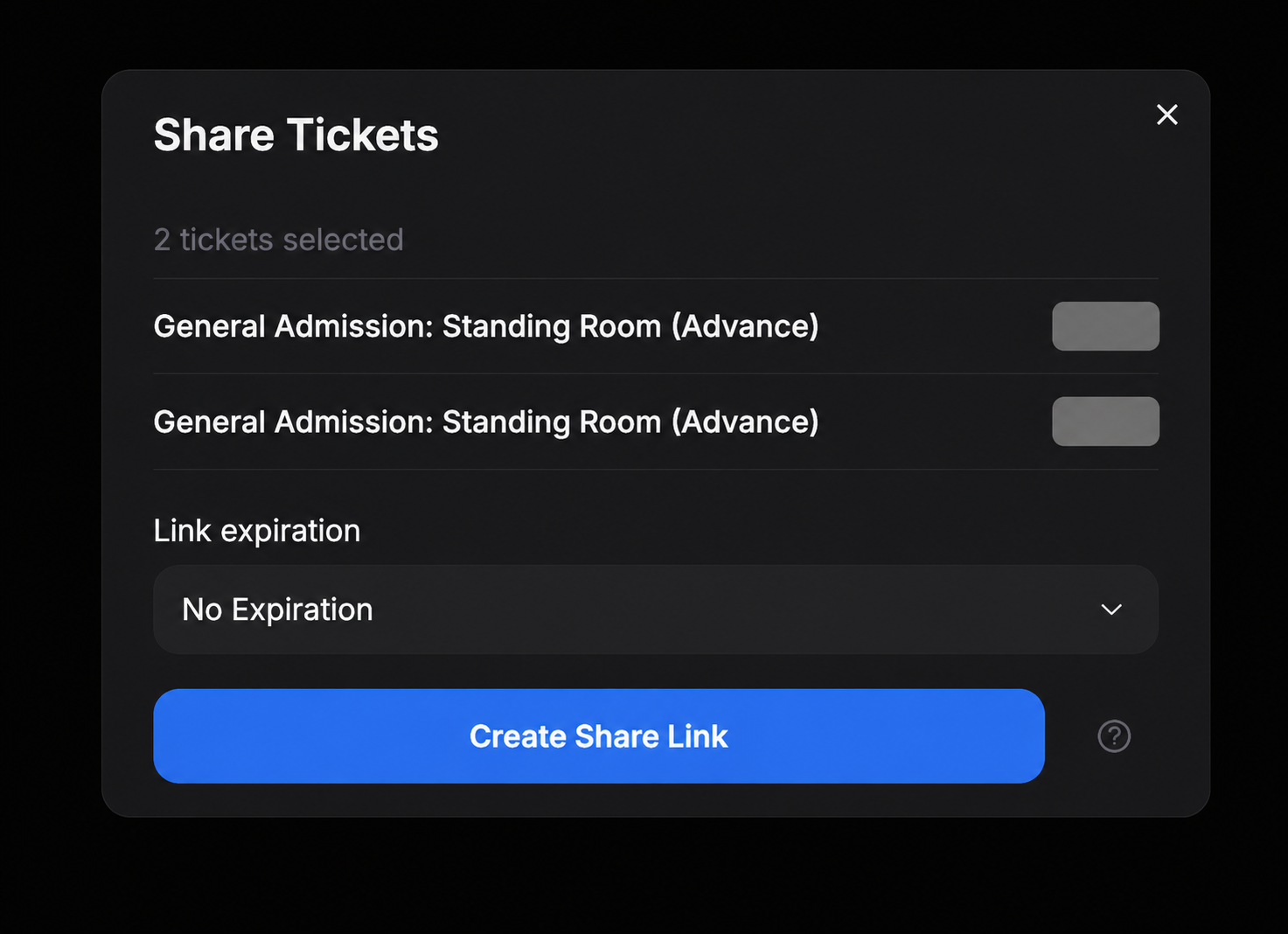
- Click Actions → Share.
- Choose Link expiration.
- Click Create Share Link, then Copy Link.
Send the link privately. Anyone with the URL can open its QR codes.
3. Use and Manage the Link
| Action | What to do |
|---|---|
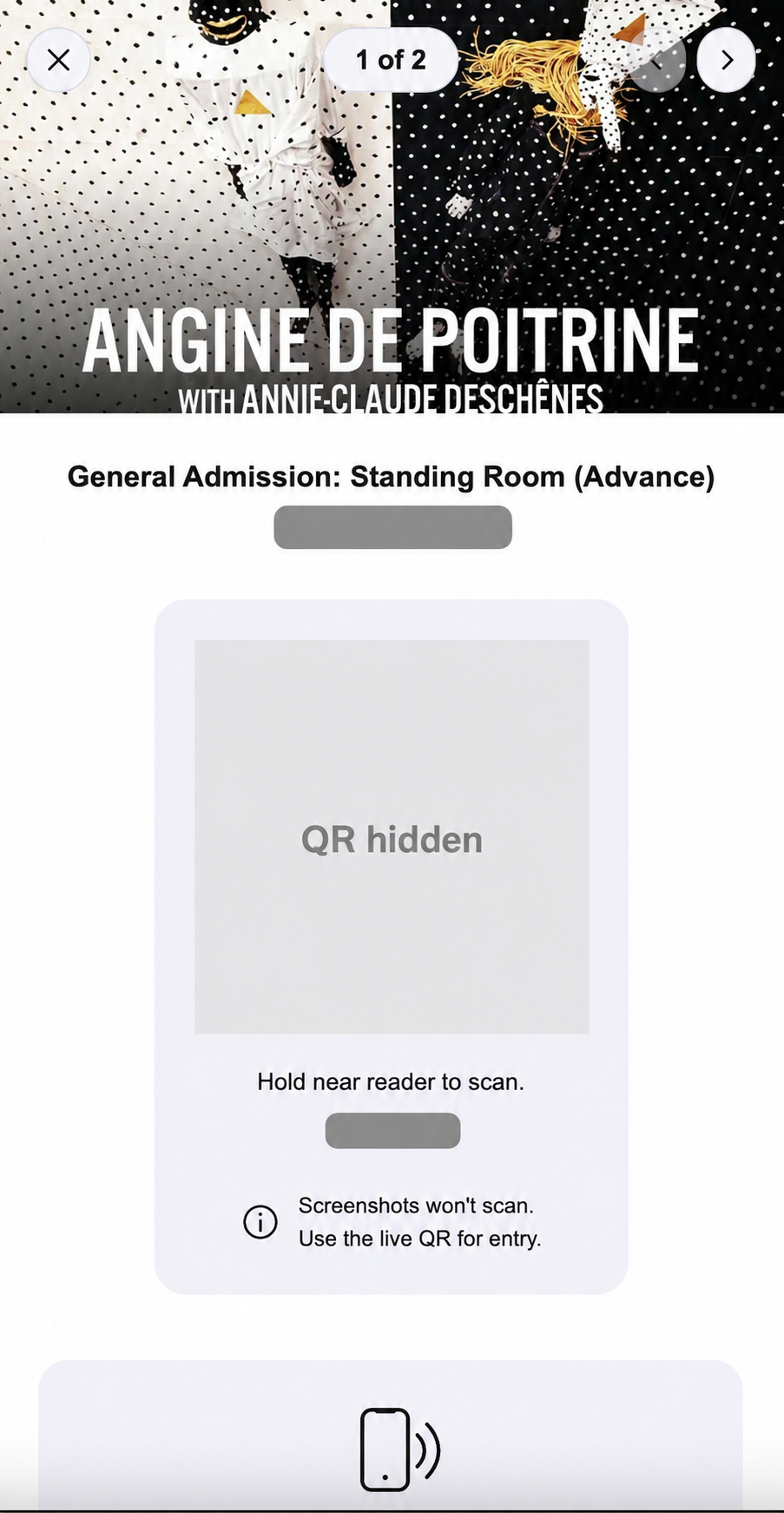
| Show each ticket | Swipe or use the arrows. The counter shows 1 of 2, for example. |
| Enter the venue | Keep the page open and connected to the internet. Screenshots expire within seconds. |
| Find an existing link | Open My Links → Tixr to copy or open it again. |
| Remove access | Choose … → Delete link in My Links. This removes access to every ticket in that link. |
Deleting a ticket from My Tickets does not delete its share link.
To change the expiration or saved ticket details, delete the old link and create a new one from refreshed tickets.
If the session expires, use Accounts → Relogin. If the QR is missing, refresh the account and check its availability in Tixr.