🔐 Fnac Ticket Vault and QR Sharing
Connect Fnac Spectacles to use Tikey Manager as a secure ticket vault, create QR share links, and keep their barcodes updated.
This guide covers QR sharing, not ticket transfer.
How It Works
Connect Fnac → Find it under Eventim → Create a share link → Refresh Tickets to check for an updated QR.
Tikey does not create or continuously rotate the barcode. It displays the barcode supplied by Fnac as a static QR code. If Fnac changes that value, a ticket Refresh updates the QR behind the same share URL.
Fnac QR codes can change. This is why Tikey's Refresh system checks the latest barcode and updates existing share links instead of requiring a new link.
1. Connect Fnac
- Open Account Manager.
- Select Tickets Accounts → Link Accounts → Eventim Group.
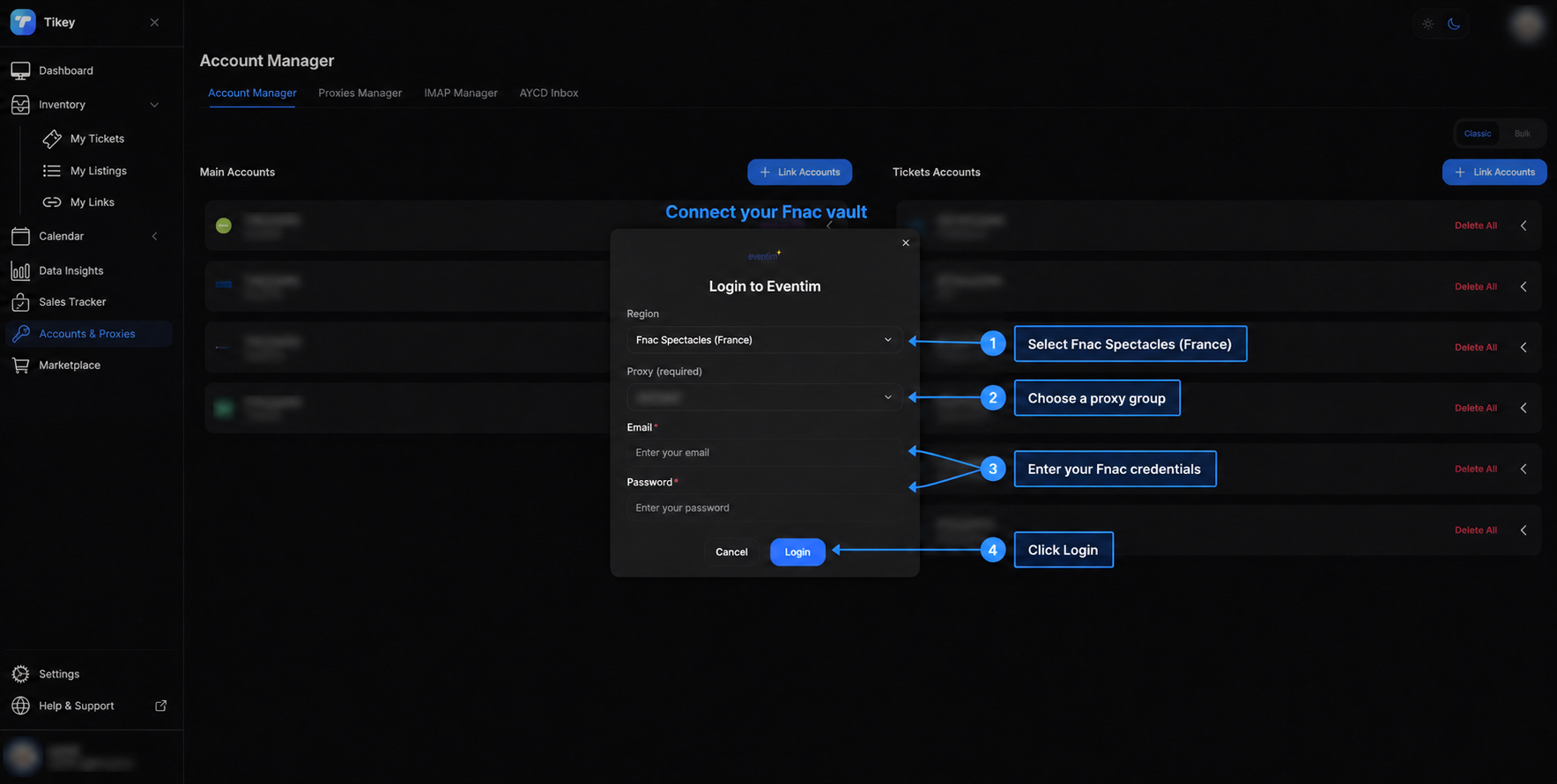
- Choose Fnac Spectacles (France) and a required proxy group.
- Enter the Fnac email and password, then click Login.
Once linked, the Fnac account acts as a ticket vault inside Tikey. Tikey securely preserves its session and refresh credentials for as long as the account remains attached. If Fnac revokes the provider session, use Relogin instead of removing the account.
What to do on this screen
1. Select Fnac Spectacles (France).
2. Choose the proxy group for this account.
3. Enter the Fnac email and password.
4. Click Login. Enter your Tikey Master Password first if it is enabled.
2. Find Fnac under Eventim
Fnac Spectacles uses the Eventim Group connection, so Tikey lists Fnac websites and accounts under Eventim. This is expected.
- Open My Tickets.
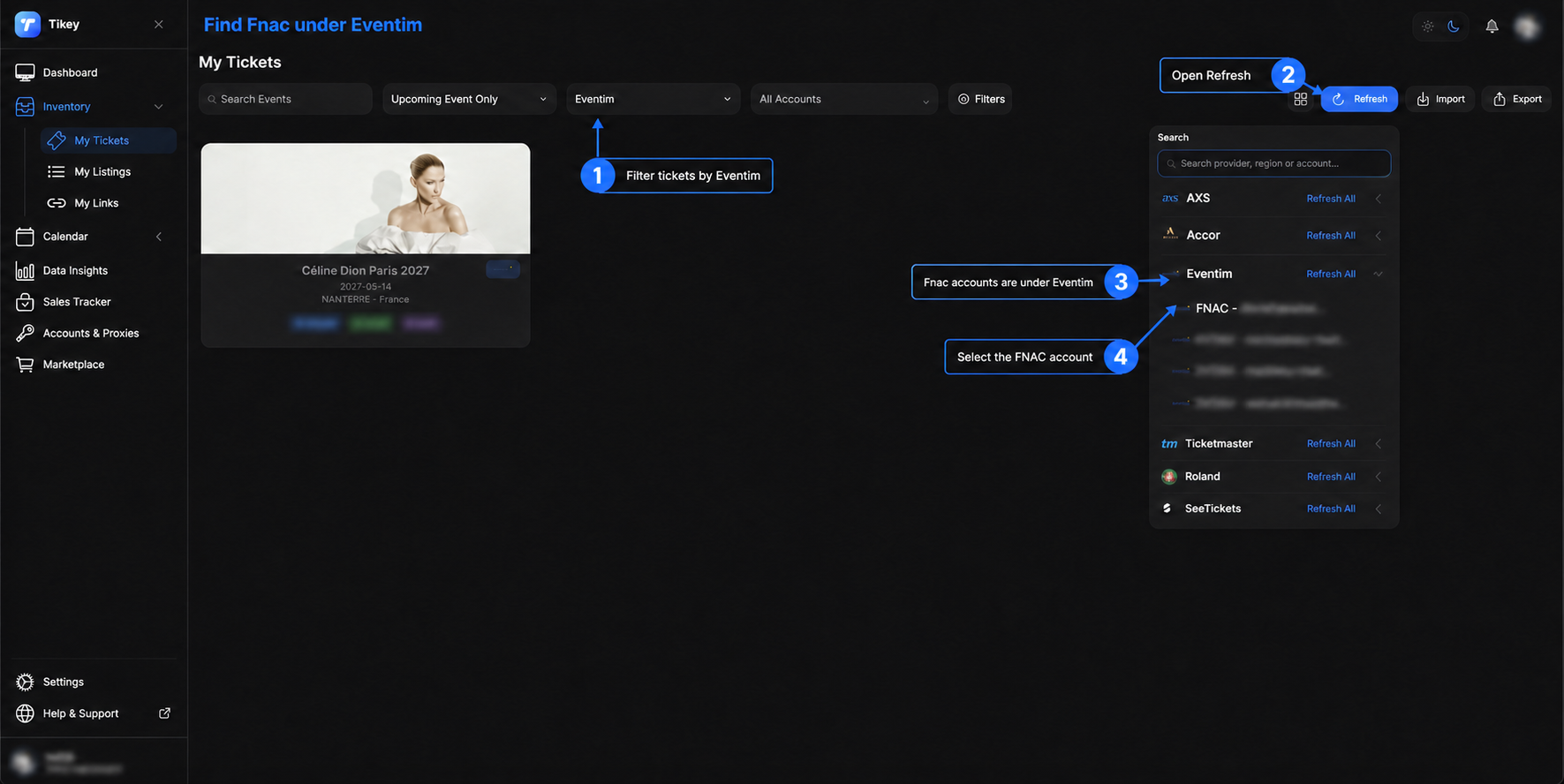
- Select Eventim in the provider filter to display Fnac tickets.
- Click Refresh and expand Eventim.
- Select the FNAC - account email row to refresh that account's tickets and check its current QR codes.
How to read this screen
1. Filters the ticket inventory by Eventim.
2. Opens the Refresh menu.
3. Shows that Fnac accounts are grouped under Eventim.
4. Refreshes the selected Fnac account and checks its ticket QR codes.
3. Create a Fnac QR Link
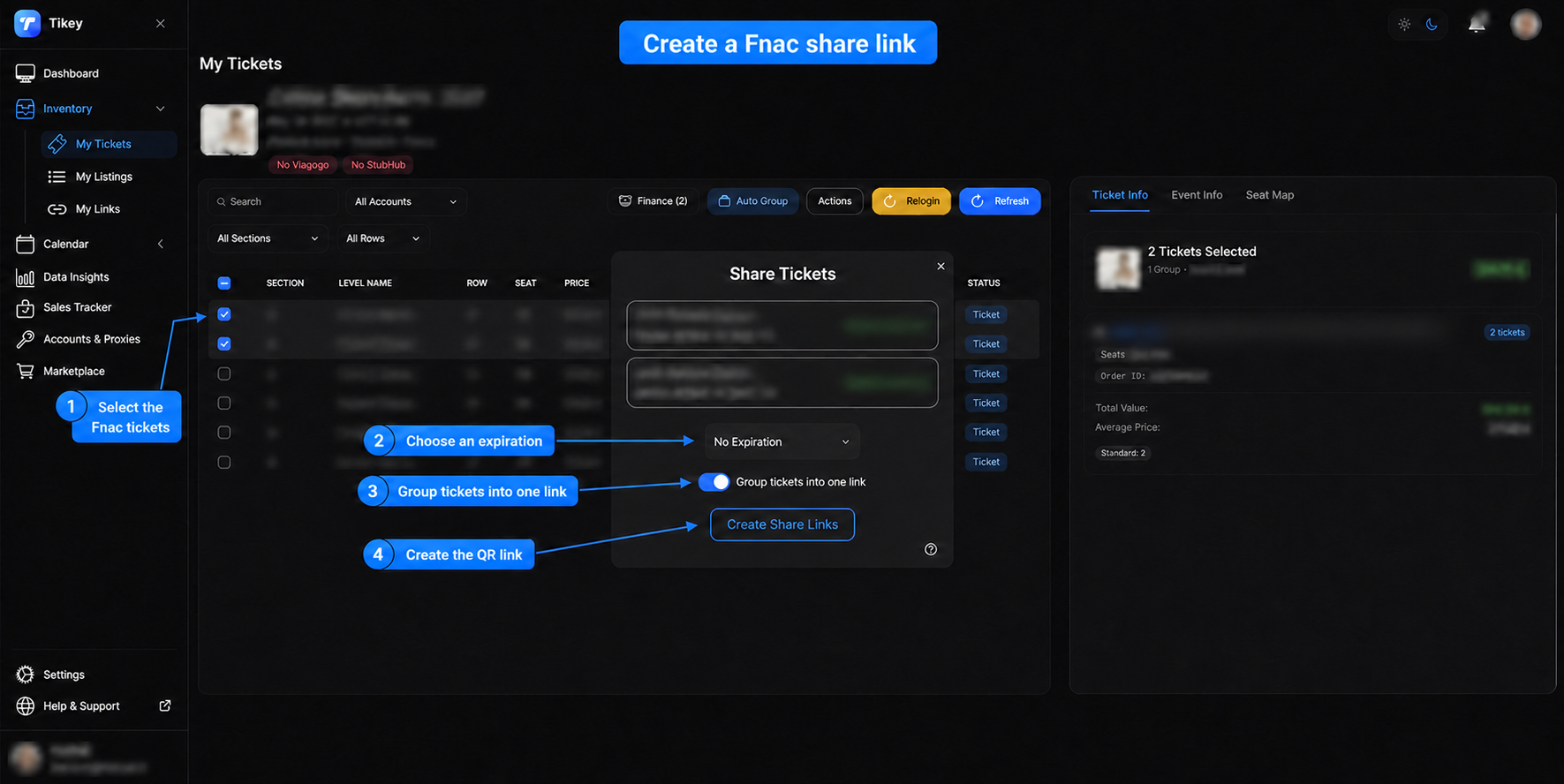
- Open the event in My Tickets and select the Fnac ticket or tickets.
- Click Actions → Share.
- Choose the link expiration.
- Keep Group tickets into one link enabled for one multi-ticket URL, or disable it for one URL per ticket.
- Click Create Share Links, then copy the generated link.
If a ticket already has an active link, reuse it from My Links.
Create the share link
1. Select the Fnac tickets.
2. Choose an expiration.
3. Decide whether several tickets should share one URL.
4. Click Create Share Links.
What the Recipient Sees
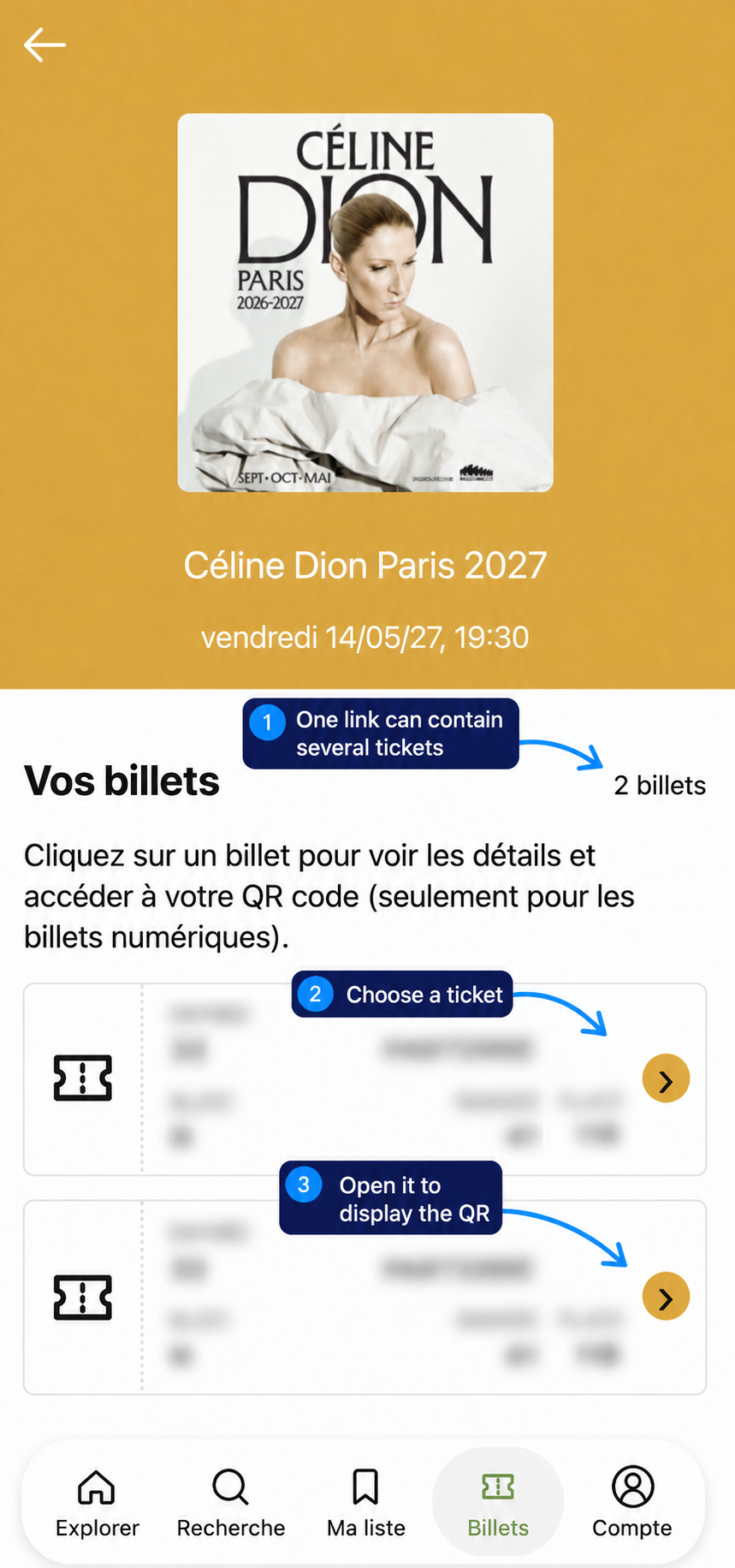
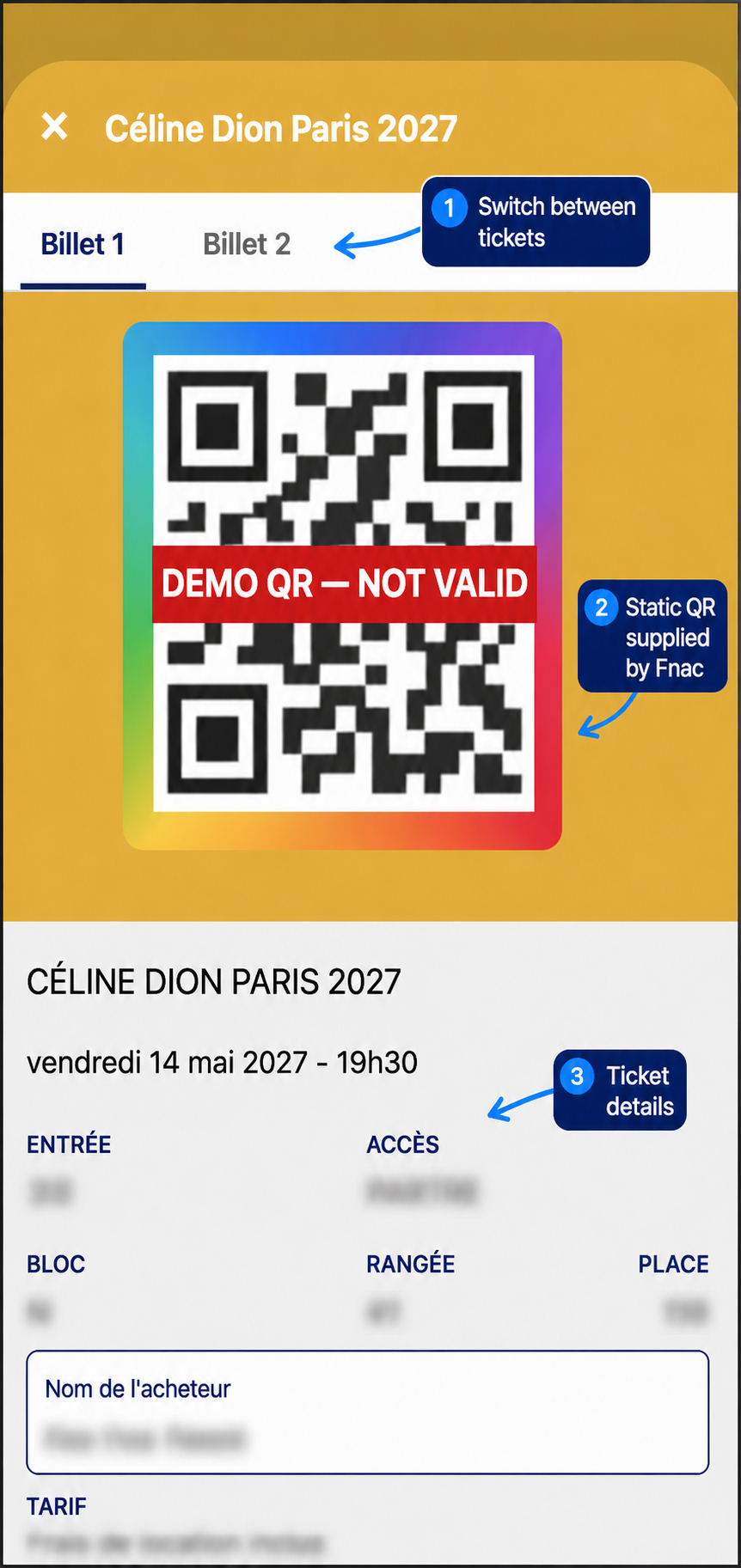
A grouped URL first shows all included tickets. The recipient chooses one ticket to open its QR, then uses the ticket tabs to switch between them.
About the displayed QR
The QR is the static barcode supplied by Fnac. The clock and colored border are visual only; they do not rotate the code.
The QR below is a non-functional demo. Never publish a live ticket QR or share URL in documentation.
4. Update the QR with Refresh
Use My Tickets → Refresh → Eventim → FNAC - account email, as shown in section 2.
- Tikey retrieves the current ticket QR codes from Fnac.
- If Fnac changed a barcode, Tikey updates it behind the existing share URL.
- If the update fails, Tikey keeps the previous QR unchanged.
- A recipient with the page already open must reload or reopen it.
Do not create a new link after Refresh. The existing URL remains valid and displays the latest successfully retrieved QR.
Availability Before the Event
Fnac controls when ticket features become available:
- A QR code may only appear a few hours before the show. If it is still missing, Refresh the Fnac account again closer to the event.
- Ticket transfer can remain disabled without an activation time and may only open on the event day. Tikey cannot activate or bypass a transfer that Fnac or the organizer has not enabled.
5. Manage and Protect Links
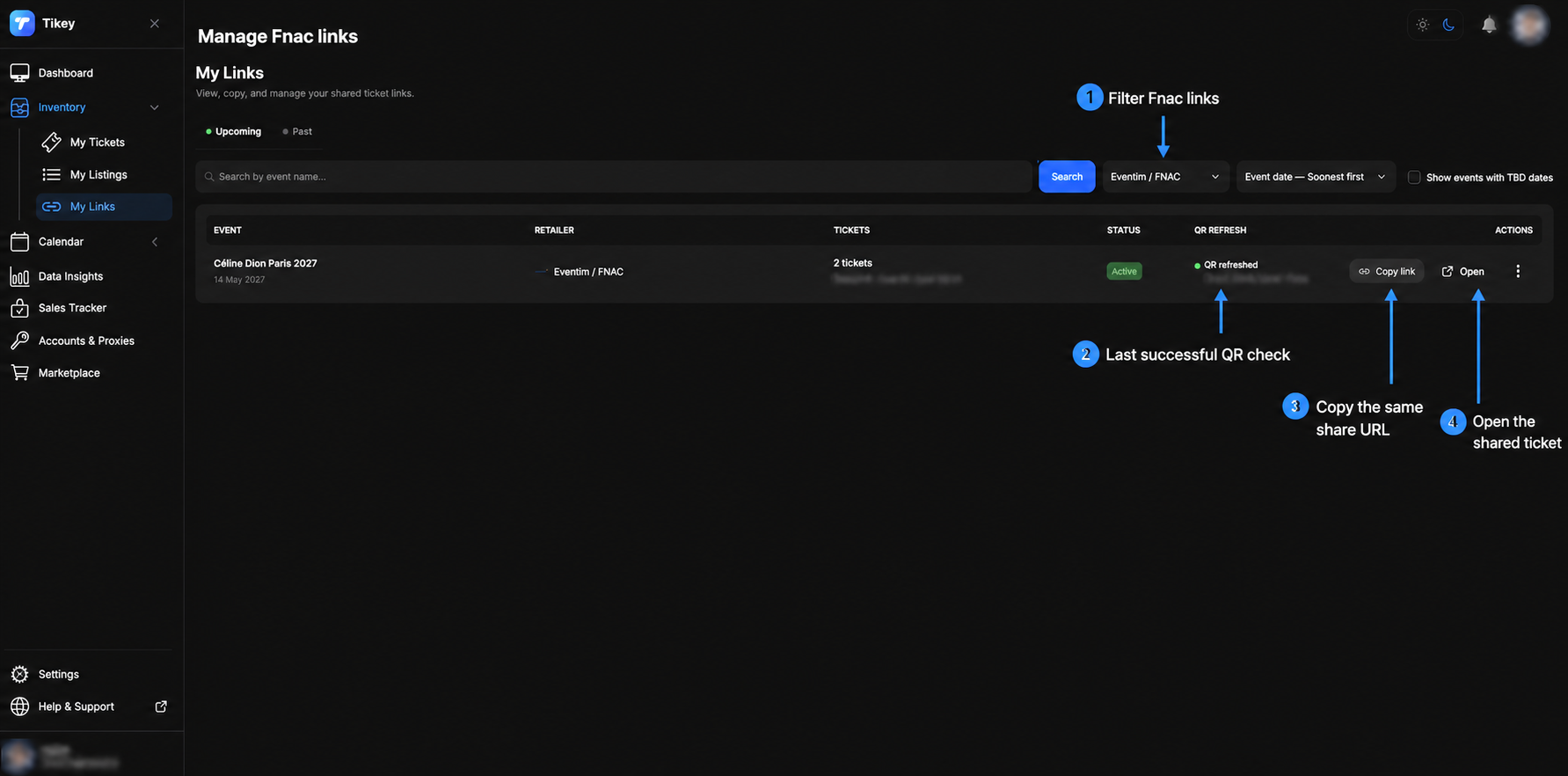
Open My Links and select Eventim / FNAC.
Manage the existing link
1. Filter the page by Eventim / FNAC.
2. Check the latest successful QR refresh time.
3. Copy the same share URL.
4. Open the shared ticket to verify it.
QR refreshed confirms a successful QR check; it does not necessarily mean the barcode value changed.
A share link is public to anyone who has its URL. Share it privately and choose the shortest practical expiration. Keep the Fnac account linked while its QR links are active; use Relogin instead of deleting and re-adding it.
Quick Troubleshooting
- No QR: Fnac may only release it a few hours before the show. Use Refresh again closer to the event.
- Transfer unavailable: Fnac may enable it only on the event day and may not display an opening time.
- Old QR still displayed: confirm Refresh succeeded, then reload the shared page.
- Login or Refresh rejected: verify the proxy and use Relogin. Enter the Tikey Master Password when requested.