Sell tickets on AXS
Before starting, make sure the account has a saved payout method for the tickets’ region and currency.
Set up payouts if needed
Go to Accounts & Proxies → Account Manager → Tickets Accounts → AXS. Open the account’s ⋯ → Payout methods and select the tickets’ payout region.
Complete the identity and address form if asked, then add PayPal or a bank account. Check that it appears under Saved payout methods. Return to the selling window and click Reload selling options.
1. Select your tickets
In My Tickets, open the event and select eligible AXS Mobile ID tickets from the same account and event. Choose Actions → Sell on AXS.
2. Set the price and preview fees
- Enter the price per ticket in the displayed currency:
50.50means £50.50 in GBP. Use a dot, not cents or a comma. - Follow any displayed price limits. AXS validates the price during preview.
- Choose a saved method under Get paid to, if shown. Leave splitting and expiration at their defaults unless you want to change them.
Click Preview fees to see the total, fees and estimated proceeds. Nothing is listed yet—you can stop here.
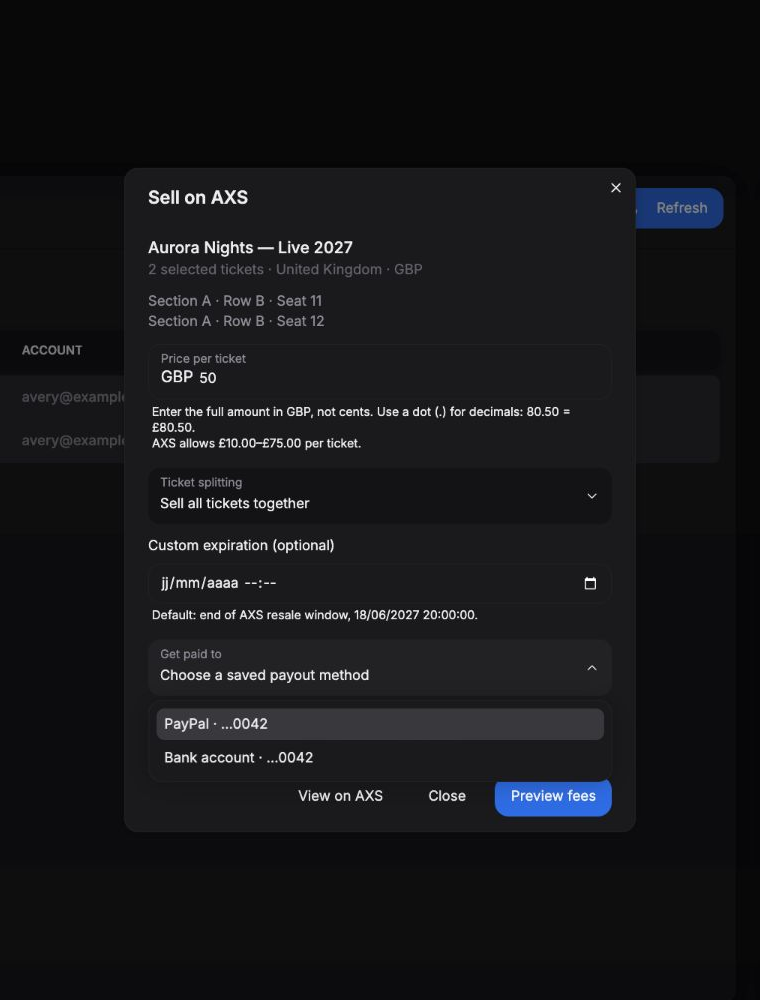
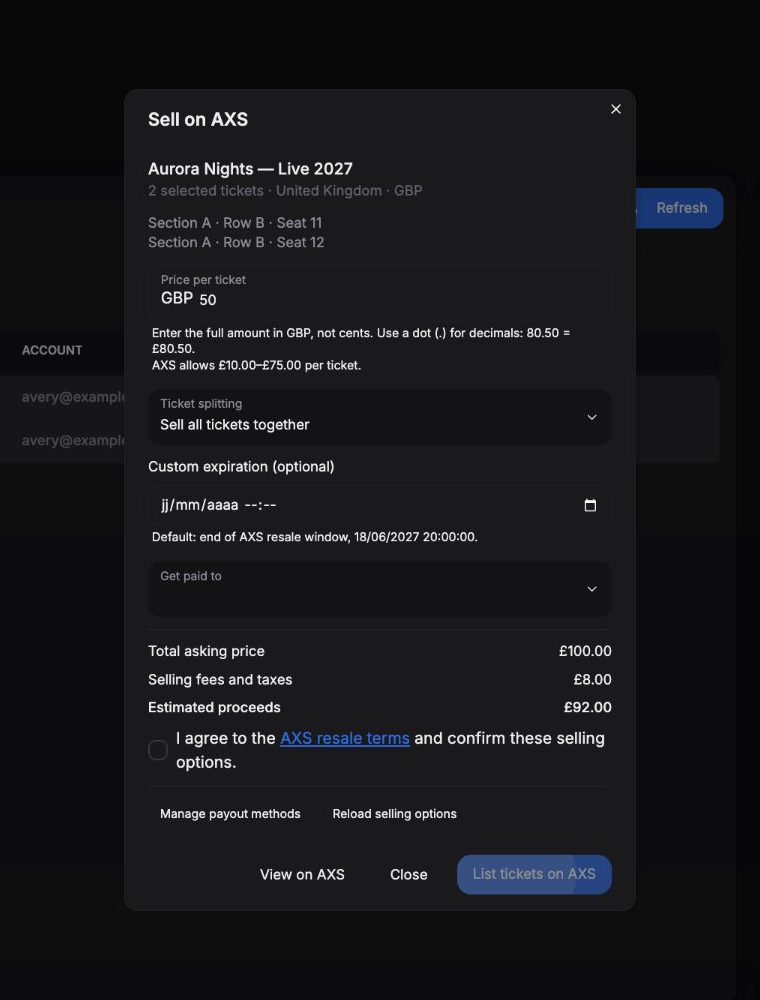
Fictional data and example fees. Click a picture to enlarge it.
3. Confirm the listing
Review the fees, accept the terms and click List tickets on AXS once. After confirmation, click Done and refresh the account’s tickets to see the AXS listing badge.
If the result is uncertain, use Check listing status before retrying.
Remove a listing
Select all tickets in the listing → Actions → Remove AXS listing → check the confirmation → Remove listing.
This removes the entire listing. Sold tickets cannot be removed; manage listings with parking directly on AXS. If uncertain, use Check removal status before retrying.