How to Change Phone Number
This guide explains how to change the phone number on your Ticketmaster account using Tikey's Email OTP feature.
📋 Prerequisites
Before starting, make sure you have:
- ✅ A Ticketmaster account linked to Tikey
- ✅ Access to the Ticketmaster account's email
- ✅ The new phone number you want to use
🔄 Step-by-Step Process
Step 1: Link Your Ticketmaster Account
If you haven't already, link your Ticketmaster account to Tikey first.
- Visit: https://www.tikeymanager.com/account
- Follow the account linking guide
Step 2: Request Email OTP from Tikey
- Go to the Accounts section in Tikey
- Find your Ticketmaster account in the list
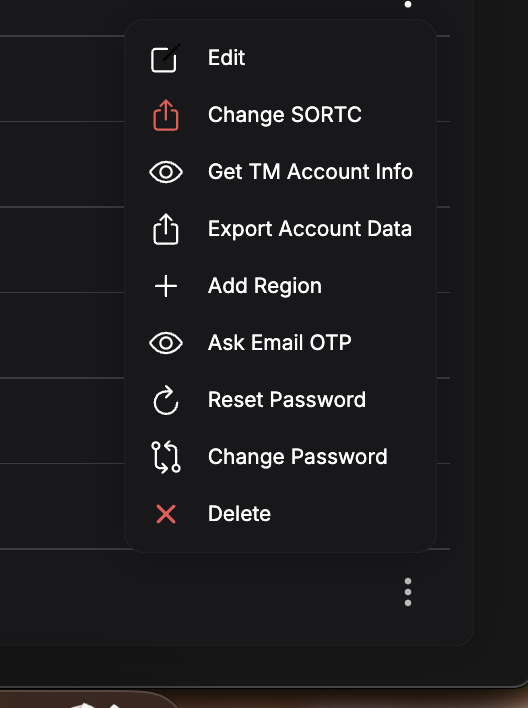
- Click on the three dots menu (⋮) next to your account
- Select "Ask Email OTP" from the dropdown menu
Step 3: Wait for OTP Request
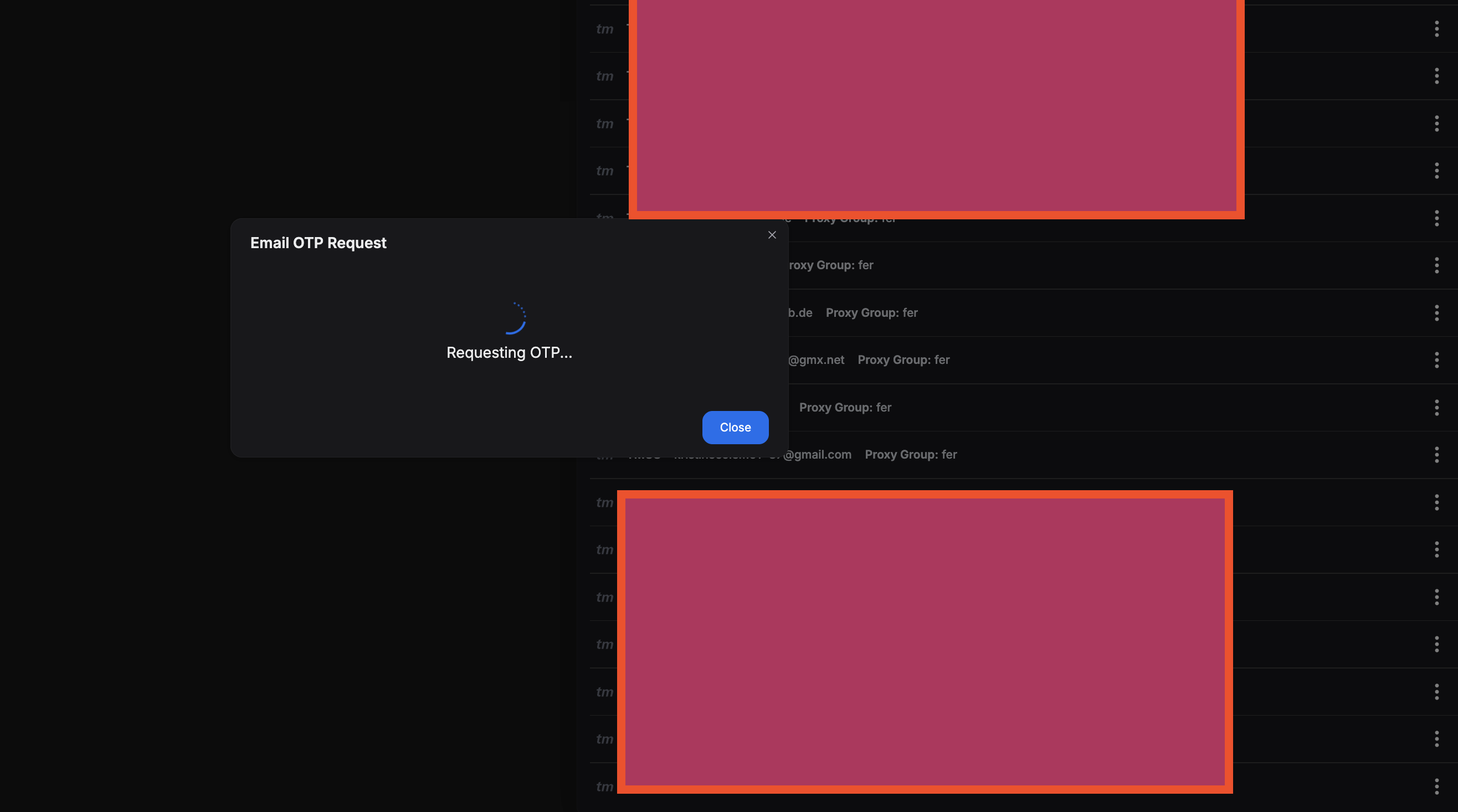
A popup will appear showing "Email OTP Request" with a loading indicator.
- The system is requesting an OTP code from Ticketmaster via email
- This usually takes a few seconds
Step 4: Get the Cookies
Once the OTP request is successful:
- The popup will display the cookies/session data
- Copy these cookies - you'll need them in the next step
Keep this window open or save the cookies somewhere temporarily. You'll need to paste them on the Ticketmaster settings page.
Step 5: Go to Ticketmaster Settings
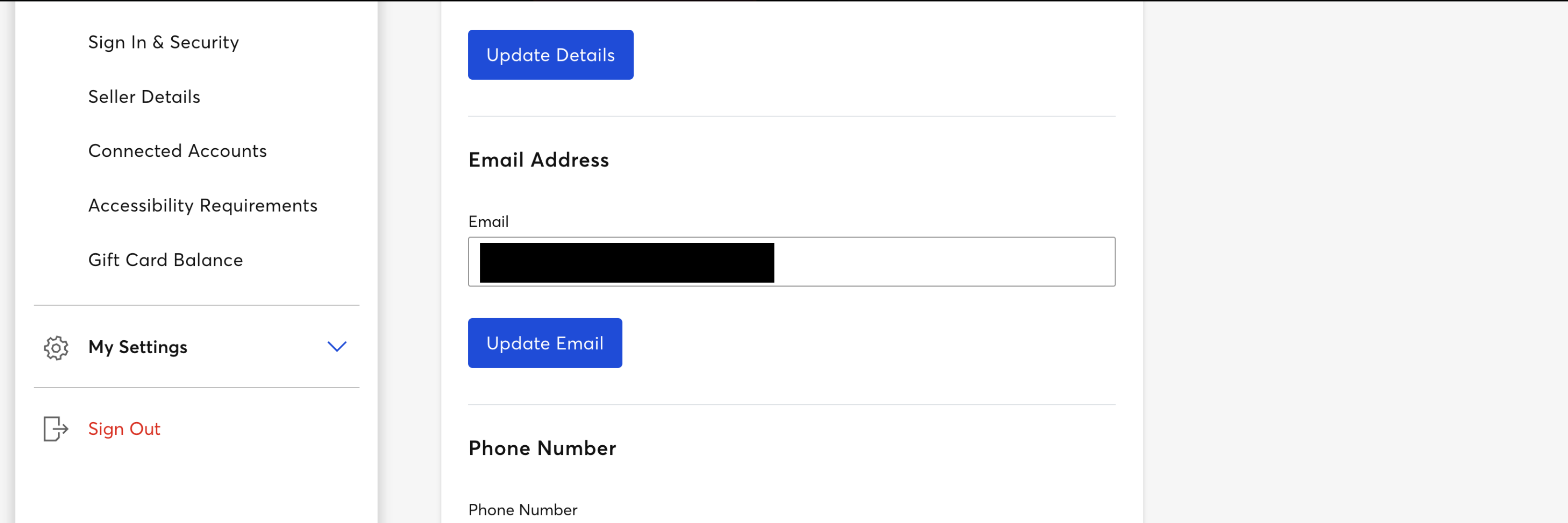
- Open a new tab and go to your Ticketmaster account
- Navigate to Settings → My Settings
- Find the Phone Number section
Step 6: Paste the Cookies
Before proceeding with the phone number change, you need to import the cookies using a browser extension:
-
Install the Cookie-Editor extension:
-
Click on the Cookie-Editor extension icon in your browser toolbar
-
Click on "Import" or paste icon
-
Paste the cookies you copied from Tikey
-
Click "Import" to apply them
Pasting the cookies from Tikey into your Ticketmaster session allows you to bypass certain security checks and use the OTP code that Tikey retrieved for you.
Step 7: Request Phone Number Change on Ticketmaster
- On the Ticketmaster settings page, click "Update Phone Number"
- Enter your new phone number
- Ticketmaster will ask for a verification code
Step 8: Enter the OTP Code
- Use the OTP code that you received from Tikey's Email OTP request (from Step 4)
- Paste the code into Ticketmaster's verification field
- Click "Update" or "Confirm"
Step 9: Verification Complete ✅
Your phone number should now be successfully changed!
- You'll receive a confirmation on the Ticketmaster page
- The new phone number will be displayed in your account settings
⚠️ Troubleshooting
The OTP code doesn't work
- Make sure you pasted the cookies correctly in Step 6
- The OTP code may have expired - try requesting a new one from Tikey
- Clear your browser cache and try again
"Ask Email OTP" option is not showing
- Verify that your Ticketmaster account is properly linked to Tikey
- Refresh the Accounts page
- Check that your account status is active
Cookie pasting isn't working
- Copy the entire cookie string from Tikey
- Try using an incognito/private browser window
📝 Important Notes
- The OTP code from Tikey is time-sensitive and typically expires after a few minutes
- Complete the entire process quickly once you request the Email OTP
- Don't close the Tikey window until you've successfully copied the cookies
This same method can be used for other account security operations on Ticketmaster that require email verification.
🔗 Related Guides
Need more help? Contact support or check our FAQ section.