How to Add Accounts
Add a Tickets Account to fetch tickets and use provider actions. Here is the Ticketmaster example.
1. Choose the provider
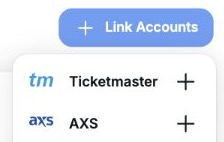
Open Accounts & Proxies. Under Tickets Accounts, click Link Accounts → Ticketmaster.
2. Sign in
For Ticketmaster, save your Capsolver key in Settings → Preferences and prepare a populated proxy group first. See First Setup.
Fill in the form, click Login, and complete any requested verification. Wait for the account to appear in Account Manager.
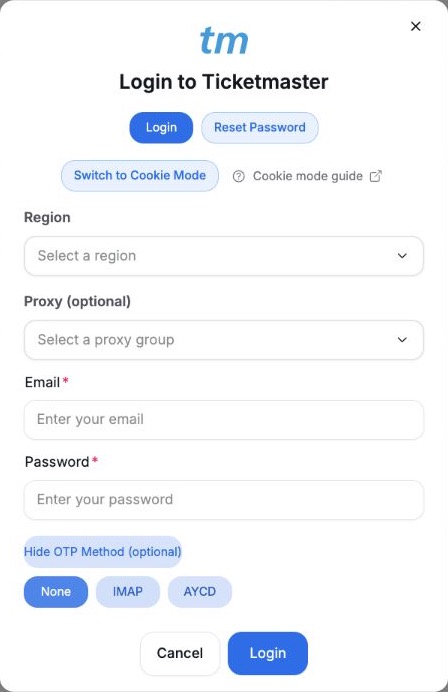
- Region
Choose the Ticketmaster region where you bought the tickets.
- Proxy
Select a group that contains proxies before logging in to Ticketmaster.
- Email and password
Use the Ticketmaster account that owns the tickets.
- OTP Method
Optional: select IMAP or AYCD to retrieve verification codes.
Login blocked? Follow Cookie Mode. Need a proxy? See Add Proxies.
3. Fetch tickets and use Actions
Open My Tickets → Refresh → Ticketmaster → your account. Refresh All fetches every linked account for that provider.
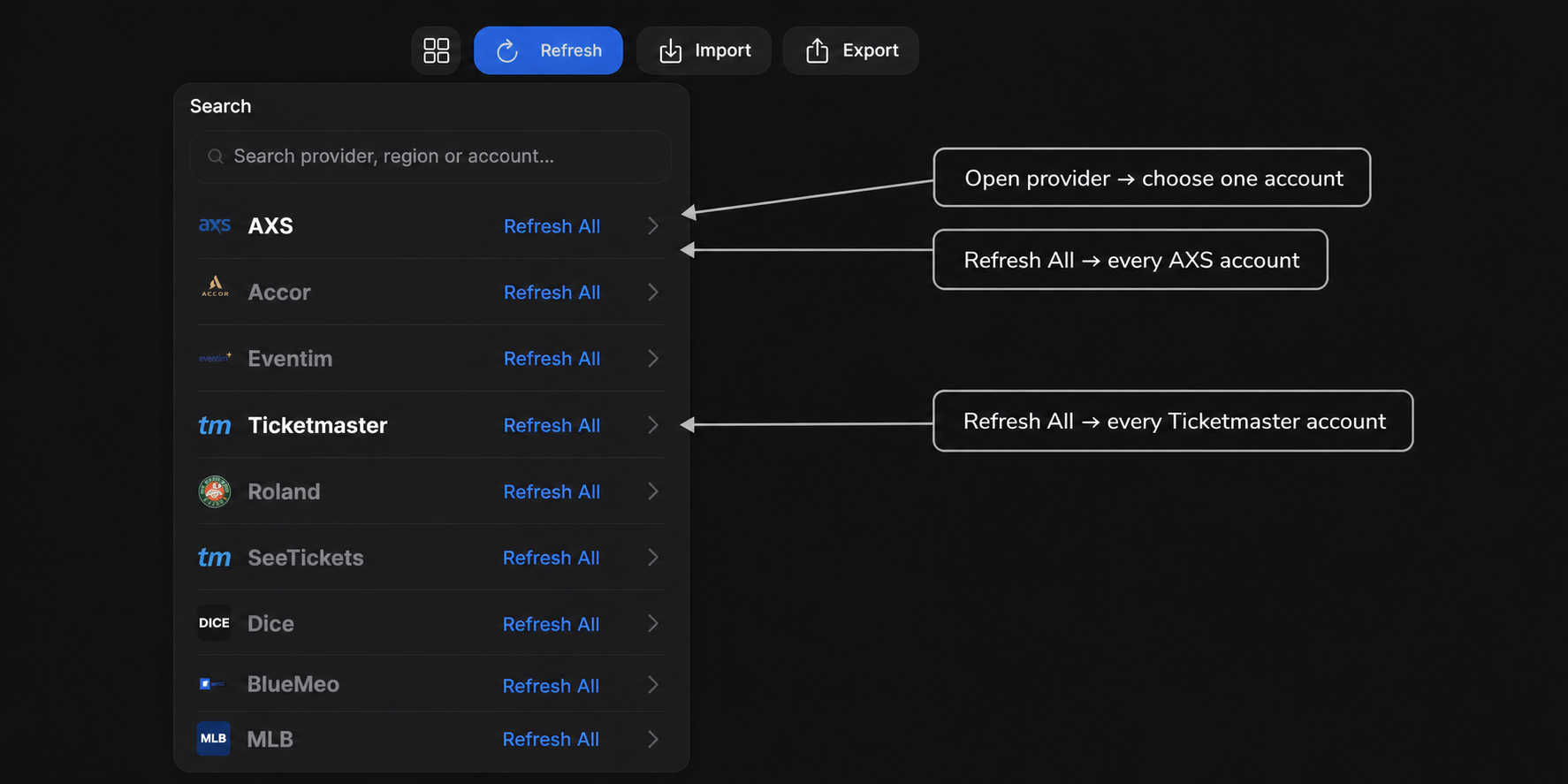
Once the tickets appear, select them → Actions → Transfer or another available action. Availability depends on the provider and ticket eligibility.
CSV and manual ticket imports only add inventory records. Linking an account does not connect those records; use the tickets fetched from the account for provider actions.
Other accounts and login options
For selling accounts, use Main Accounts → Link Accounts. For Viagogo, open the account's ⋮ → Use Account to select the primary account.
See Linking Methods for cookies and bulk account import, or the provider guides for Fnac, Tixr, and Quentro.