Linking Methods
Open Accounts & Proxies → Account Manager and choose the method that fits your accounts:
| Method | Use it for |
|---|---|
| Classic → Password login | Linking one account with its email and password. |
| Classic → Cookie Mode | Linking one Ticketmaster account with a signed-in browser session. |
| Bulk → Paste / edit accounts | Pasting or typing up to 100 accounts into an editable table. |
| Bulk → Upload CSV | Importing up to 100 account rows from a CSV file. |
| Bulk → Cookies | Importing multiple Ticketmaster browser sessions from JSON. |
The screenshots below come from Tikey's live interface. Any filled values are examples.
🧩 Classic Mode
Classic mode allows you to add accounts one by one using a login form.
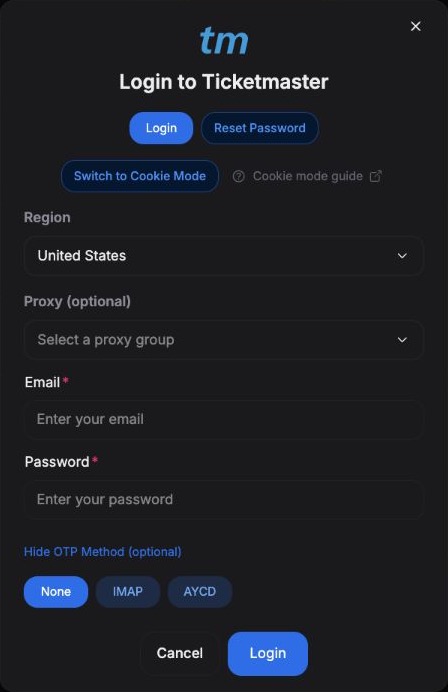
🔐 Single Mode Login
Under Tickets Accounts, click Link Accounts → Ticketmaster. For Ticketmaster password login, prepare your Capsolver key and proxy group first.
- Select the region where you bought your tickets.
- Select a populated proxy group from Proxies Manager.
- Enter your account's email and password.
- Open Show OTP Method (optional) if you want to use an IMAP inbox or AYCD profile for verification codes. Otherwise, use None.
- Click Login and complete any requested verification.
🍪 Cookie Mode (If Login Module is broken)
If password login is blocked, use Switch to Cookie Mode in the Ticketmaster login form to bring over a browser session.
Steps:
-
Visit the Ticketmaster login page in your browser and log in manually
-
Open a Ticketmaster event page in the same region as the account you are linking, such as Ticketmaster US or Ticketmaster Netherlands.
-
Open Cookie Editor on that event page. You can now export the full cookies JSON.
-
In Tikey, choose the matching Region and proxy group, and enter the account's email and password. Click Switch to Cookie Mode.
-
Paste the export into Paste full cookies JSON, then click Extract SOTC / SORTC / TMPT / id-token. Tikey fills the cookie fields automatically.
-
Check the extracted values, then click Login.
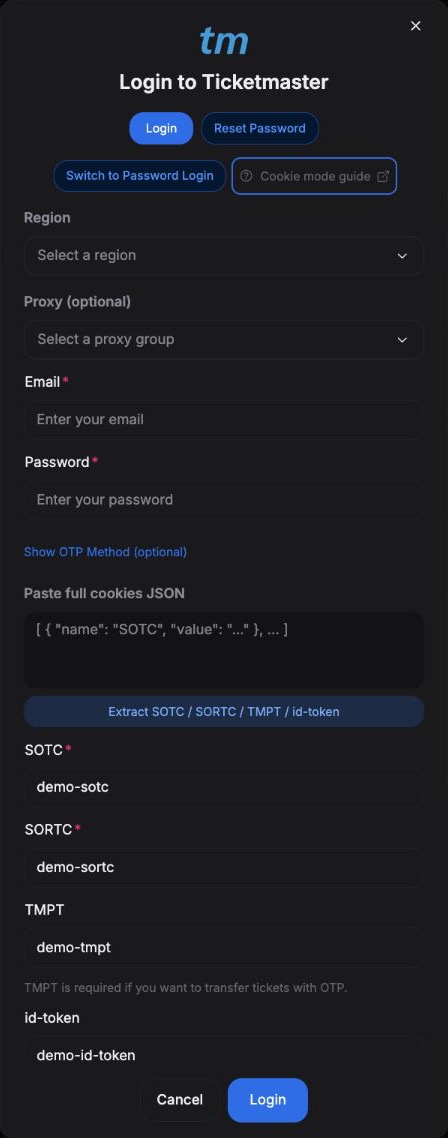
TMPT is needed for ticket transfers that use OTP. If Tikey shows TMPT missing, return to an event page for the selected region and export the cookies again.
📺 Need help? Watch this video (old video, you can now export the full JSON and paste it directly):
How to extract cookies and login to Tikey
⚠️ Make sure you're logged in completely before copying cookies.
📦 Bulk Mode
Bulk Mode lets you paste accounts, upload a CSV, or import Ticketmaster cookies.
🧠 How it works
- Click Bulk at the top right of the Account Manager.
- Select the provider tab, such as Ticketmaster or AXS.
- Click Bulk Login and choose Paste / edit accounts, Upload CSV, or Cookies.
✏️ Paste / edit accounts
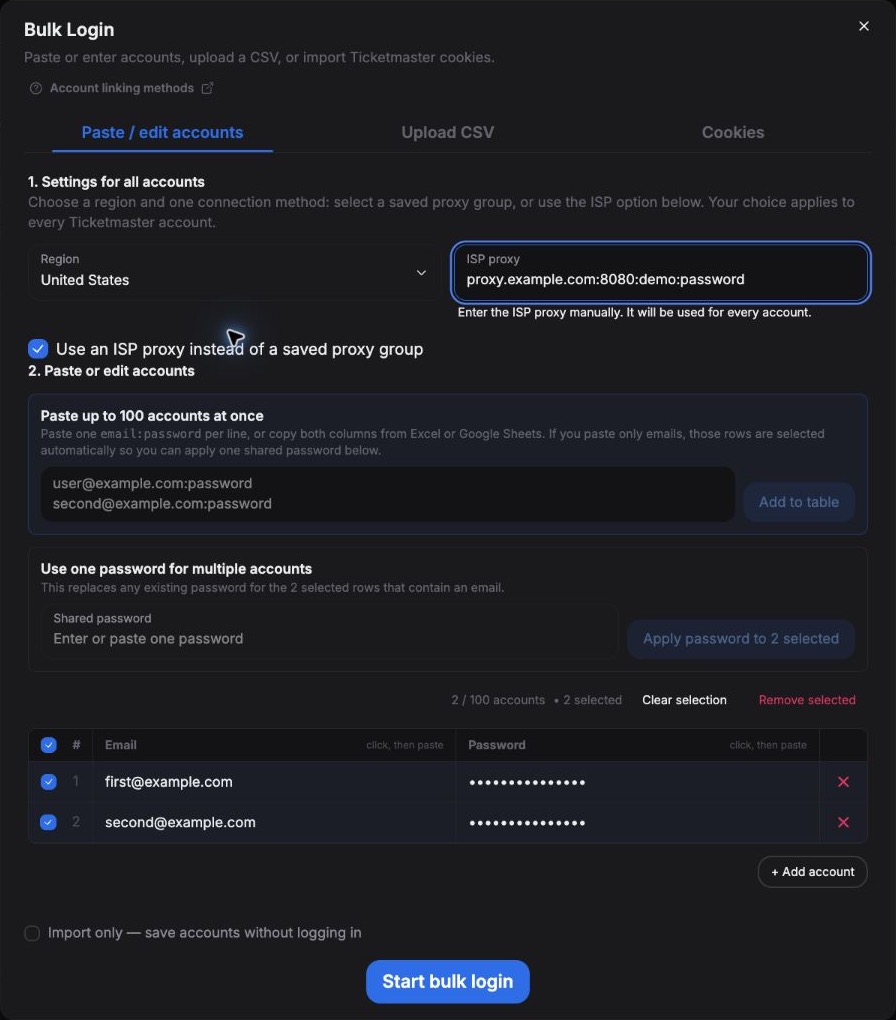
- Choose the Region and Saved proxy group for the accounts. For Ticketmaster, you can instead select Use an ISP proxy instead of a saved proxy group and enter the proxy.
- Paste one
email:passwordpair per line, or copy the email and password columns from Excel or Google Sheets. - Click Add to table and check the rows. You can edit cells or use + Add account to enter accounts manually.
- If several accounts share a password, select their rows, enter a Shared password, and click Apply password to … selected. Pasting only emails selects those rows automatically.
- Click Start bulk login.
📂 Upload CSV
- Open the Upload CSV tab.
- Click Download Sample CSV for a starting template. Open Valid CSV Region codes to check the codes for your provider.
- Drop one CSV file into the upload area, or click Select a file.
- Click Start bulk login.
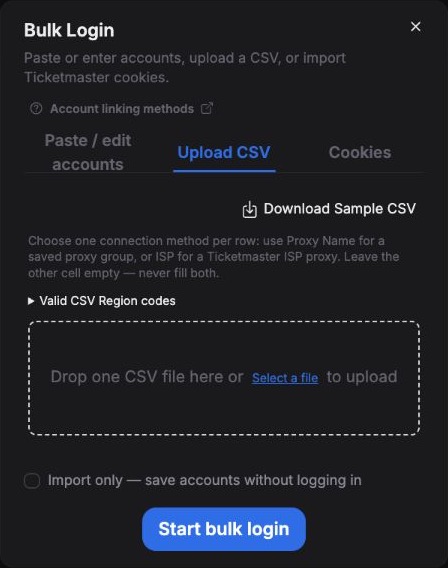
For Paste / edit accounts and Upload CSV, check Import only — save accounts without logging in if you only want to store the account records. The submission button changes to Import accounts. This does not fetch tickets or verify the login.
📄 CSV Format Example
Use the exact column names below. Each row needs an email, password, and region. Use the name of a proxy group that already exists in your Proxies Manager.
✅ Proxy Group Format:
Region,Email,Password,Proxy Name
AXSUK,[email protected],ExamplePass123!,Demo proxies
✅ ISP Format (Ticketmaster only):
Region,Email,Password,ISP
TMUS,[email protected],ExamplePass123!,proxy.example.com:8080:demo:password
You can include both connection columns in a CSV, but fill only one per row:
Region,Email,Password,Proxy Name,ISP
TMUS,[email protected],ExamplePass123!,Demo proxies,
TMUS,[email protected],ExamplePass123!,,proxy.example.com:8080:demo:password
ISP is only supported for Ticketmaster. Paste/edit and CSV import accept up to 100 accounts per submission.
🍪 Bulk cookie import
Use the Cookies tab to add or update multiple Ticketmaster accounts from exported browser sessions.
Password and ISP are optional in the cookie JSON. You can add a password, a per-account isp proxy, or both. See the optional fields example below.
- Choose the Cookie region matching the exports. The form lists the required cookies for that region.
- For new accounts, choose a Proxy group or Use a shared ISP proxy. For existing accounts, Keep existing connection preserves their connection settings.
- Click Upload JSON, or paste the JSON into Or paste JSON. Use one email entry per account, with that account's full Cookie Editor export as its cookie array.
- Review the accounts ready count and any skipped entries, then click Import accounts.
- Open My Tickets → Refresh → Ticketmaster to fetch tickets and verify the imported sessions.
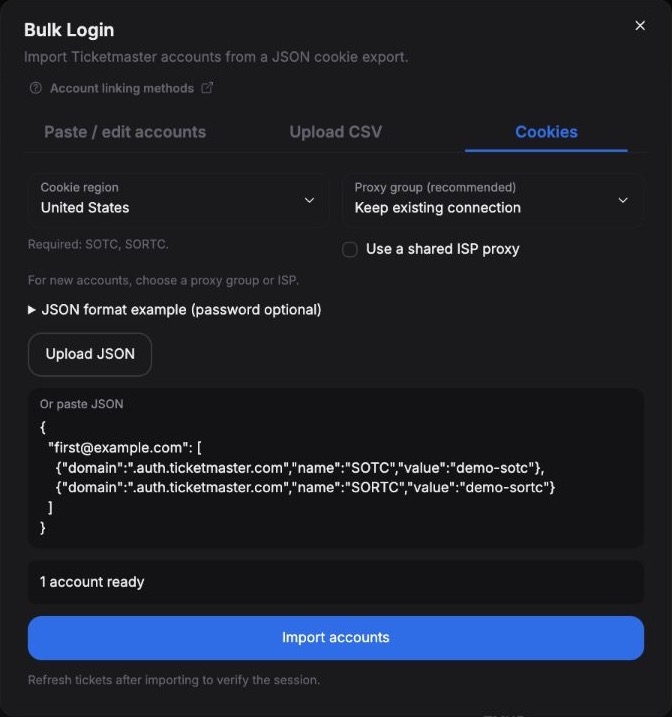
For example, this shows the structure for two US accounts. Replace the demo arrays with each account's full export, keeping the cookie names, values, and domains:
{
{ "domain": ".auth.ticketmaster.com", "name": "SOTC", "value": "demo-sotc-1" },
{ "domain": ".auth.ticketmaster.com", "name": "SORTC", "value": "demo-sortc-1" }
],
{ "domain": ".auth.ticketmaster.com", "name": "SOTC", "value": "demo-sotc-2" },
{ "domain": ".auth.ticketmaster.com", "name": "SORTC", "value": "demo-sortc-2" }
]
}
Optional password and ISP
You can optionally add a password, a per-account ISP proxy, or both to any account entry. To do this, use an object containing cookies instead of a plain cookie array:
{
"cookies": [
{ "domain": ".auth.ticketmaster.com", "name": "SOTC", "value": "demo-sotc" },
{ "domain": ".auth.ticketmaster.com", "name": "SORTC", "value": "demo-sortc" }
],
"password": "ExamplePass123!",
"isp": "proxy.example.com:8080:demo:password"
}
}
passwordis optional. Include it to save the account password. Omit it or leave it blank to keep an existing account's stored password.ispis optional. Include it to use a proxy for this account instead of the connection selected in the form. Omit it to use the selected proxy group or shared ISP, or to keep an existing account's connection when neither is selected.
Use the account's full cookie export in cookies. You can remove either optional field from the example above. The form also shows this format under JSON format example (password optional) → Optional password / ISP.
Cookie import supports up to 10,000 accounts in a JSON file of up to 25 MB; it does not perform password login.
🌍 Region Codes
Use the exact code in the CSV's Region column. The Valid CSV Region codes section in the upload form shows the codes for your selected provider.
🎟️ AXS Regions (interchangeable):
AXSUKAXSUS
For AXS, region is not strict — the same inventory is pulled regardless of region.
🏟️ Ticketmaster Regions:
| Region Code | Location |
|---|---|
TMNL | Netherlands |
TMDE | Germany |
TMAT | Austria |
TMCH | Switzerland |
TMDK | Denmark |
TMSE | Sweden |
TMBE | Belgium |
TMES | Spain |
TMUK | United Kingdom |
TMFR | France |
TMBAP | BAP TMFR |
TMCR | France - Carrefour |
TMLECLERC | France - Leclerc |
TMAUCHAN | France - Auchan |
TMADIDAS | Adidas Arena |
TMDEFENSE | Défense / Plénitude Arena |
TMAE | United Arab Emirates |
TMUS | United States |
TMAU | Australia |
TMNZ | New Zealand |
TMMX | Mexico |
TMPL | Poland |
TMZA | South Africa |
TMNO | Norway |
TMCA | Canada |
TMSG | Singapore |
TMPH | Philippines |
TMCZ | Czech Republic |
TM-AEG | AEG |
🎫 Eventim Group / Fnac:
| Region Code | Location |
|---|---|
EVTDEU | Germany |
EVTAUT | Austria |
EVTCHE | Switzerland |
EVTITA | Italy |
EVTFIN | Finland |
EVTCOUK | United Kingdom |
FNAC | Fnac Spectacles (France) |
🎟️ Other bulk-login providers:
| Region Code | Provider |
|---|---|
Accor | Accor Arena |
BlueMeo | MEO Blueticket |
🎫 SeeTickets / GigsAndTours:
| Region Code | Domain |
|---|---|
SEETPT | seetickets.com/pt |
SEETES | seetickets.com/es |
SEETFR | seetickets.com/fr |
SEETBE | seetickets.com/be |
SEETCA | seetickets.com/ca |
SEETNL | seetickets.com/nl |
SEETCH | seetickets.com/ch |
SEETUK | seetickets.com |
SEETUS | seetickets.us |
GIGSNT | gigsandtours.com |
Backup domains (with
-be) are also supported:
| Region Code | Domain |
|---|---|
SEETPTBACK | seetickets.com/pt-be |
SEETESBACK | seetickets.com/es-be |
SEETFRBACK | seetickets.com/fr-be |
SEETBEBACK | seetickets.com/be-be |
SEETCABACK | seetickets.com/ca-be |
SEETNLBACK | seetickets.com/nl-be |
SEETCHBACK | seetickets.com/ch-be |
SEETUKBACK | seetickets.com/-be |
SEETUSBACK | seetickets.us-be |
GIGSNTBACK | gigsandtours.com-be |
📌 Notes
- One region per row.
- Start bulk login submits a login task; complete any requested verification before using the accounts.
- Import only stores account records without logging in. Cookies imports browser sessions; refresh tickets afterward to verify them.
- Fill only one connection field per CSV row: Proxy Name or ISP. ISP is for Ticketmaster only.
- For a walkthrough from linking to fetching tickets, see How to Add Accounts.
Let us know if your region or domain isn’t listed!